How Airspeed syncs with Salesforce
Last updated: September 8, 2026
Airspeed reads your Salesforce data so it can match each call to the right Opportunity, Account and Contacts — and, when you switch it on, write the results back.
A few things worth knowing up front:
Airspeed reads Salesforce live — it doesn't copy your CRM. Instead of duplicating your org, Airspeed looks up exactly what it needs, when it needs it.
You're always in control of write-backs. Reading is automatic; writing anything back into Salesforce (notes, logged activity, AI insights, tasks) is entirely opt-in.
How Airspeed finds the right deal
The same journey runs the moment a call is processed, and again on a daily catch-up.
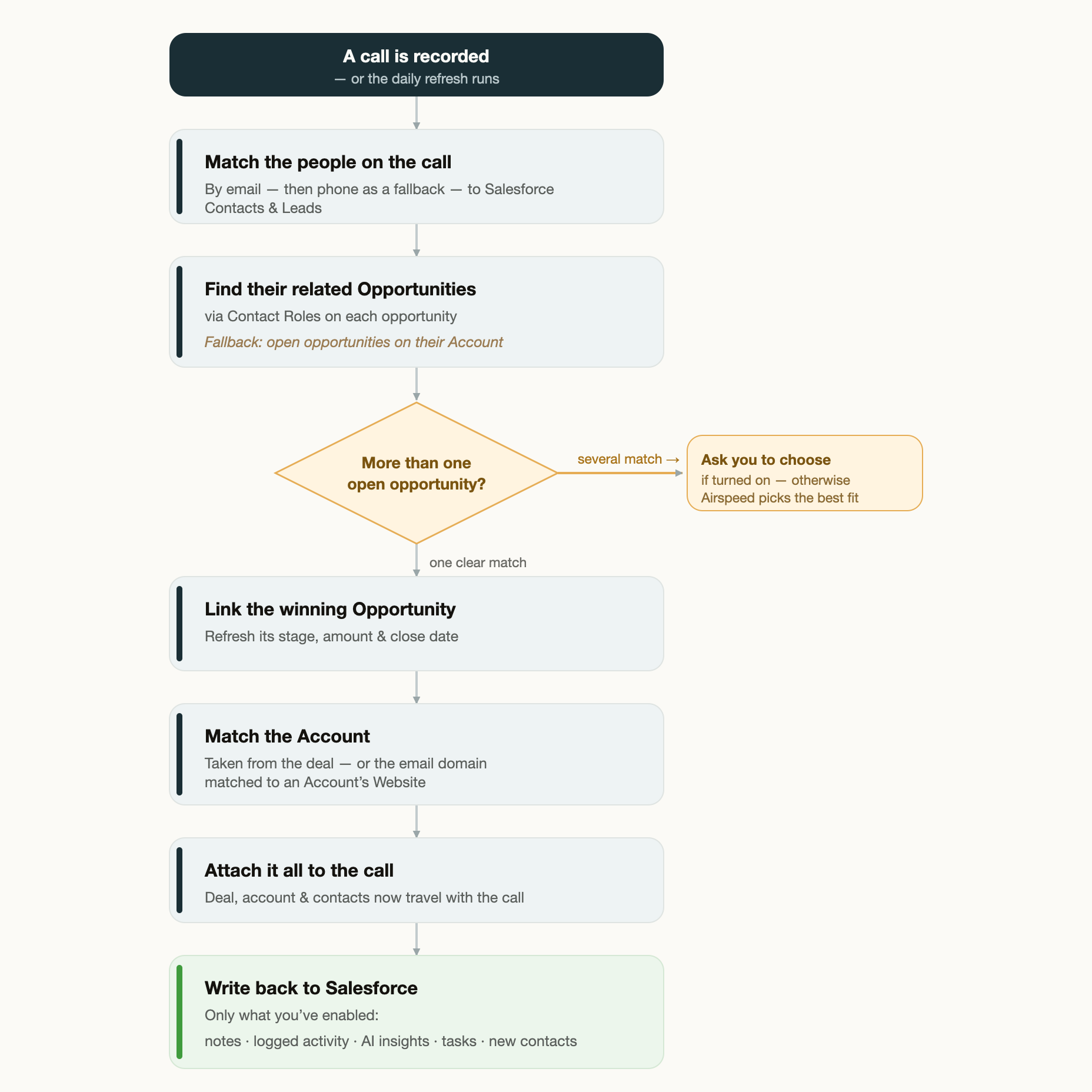
The flowchart shows these steps end to end:
A call is recorded - we take all the data from the call and start to process it
Match the people on the call — we use emails & phone numbers to match Salesforce Contacts & Leads.
Find their related Opportunities — via Contact Roles on each opportunity. Fallback: open opportunities on their Account.
More than one open opportunity? — if several match, Airspeed asks you to choose (when turned on), otherwise it picks the best fit. If you have selected auto-match, we'll select the most recent deal.
Link the winning Opportunity — and refresh its stage, amount & close date.
Match the Account — we'll match to the correct account based on the deal, or if no relevant deal, we'll use the email domain to match to an Account's Website.
Attach it all to the call — deal, account & contacts now travel with the call.
Write back to Salesforce — we'll only ever sync what you've enabled: notes, logged activity, AI insights, tasks and/or new contacts.
When syncing happens
We sync call data to your CRM in two different ways:
Right after each call. As soon as a call finishes processing, Airspeed matches it to the right opportunity, account and contacts.
On a daily catch-up. Once a day, Airspeed re-checks recent calls from the last week that didn't match a deal the first time and tries to match them. This can be useful when you create a deal in Salesforce shortly after the call.
Deal details also refresh regularly. Stage, amount and close date on open deals are kept up to date throughout the day.
Opportunity-level insight fields update on the same two triggers. AI-generated values Airspeed writes back to a deal (for example a "Next steps" field) are recomputed and re-synced after each new call matched to the opportunity, and again whenever a new deal comment is added. Between those, the regular background sync re-checks the deal and re-syncs.
Emails and calendar events are picked up on the background sync, not instantly. Airspeed reads emails live from Salesforce at sync time rather than storing them, so a newly logged email is reflected on the next regular background sync — which runs multiple times a day — rather than the moment it arrives.
How a new value combines with what's already in Salesforce depends on the per-field sync behavior you choose: overwrite replaces the existing value, append adds to it, and merge combines the two.
Sync timing is managed by Airspeed and runs automatically; it isn't something you need to schedule.
How the match is decided
Airspeed always starts from the people on the call. It looks up each external participant in Salesforce by email (and by phone number for dial-ins), then follows those contacts to the opportunities they're attached to.
Airspeed will ignore any deal that is:
Closed before the call start date
Open but has a historically dated close date
When several open opportunities fit. On busy accounts, more than one deal can look like a match — especially when Airspeed falls back to "all open opportunities on the account." You can turn on Ask me to choose so Airspeed pauses and lets a person pick the right deal instead of guessing. By default it breaks any tie by choosing the most recently created one.
How the company and contacts are matched
Account. If the call is already linked to an opportunity, its account comes straight from that deal. Otherwise, Airspeed matches the participants' email domain (e.g. acme.com) to an Account's Website.
Contacts & Leads. Participants are matched by email first, then by phone number. If a participant isn't in Salesforce yet and you've enabled it, Airspeed can create a Contact (when the account is known) or a Lead (when it isn't). Note: if there are more than 15 external participants on a call, this step does not run.
What Airspeed can write back
Each of these is a separate setting, and every one is off until an admin enables it.
Call notes & summaries
Logged activity (Call / Task)
AI-generated insights → fields
Tasks & next steps
New contacts & leads
Deal amount, close date & stage
Write-backs only ever touch the fields you've mapped — Airspeed never blanks out anything else — and every write is recorded so there's a clear audit trail.
What you can control
Setting | What it does | Default |
|---|---|---|
Enabled pipelines | Limit matching to specific Salesforce pipelines | All |
Ask me to choose | Pause and let a person pick when several deals match | Off |
Log activity | Record the call as a Salesforce activity, and how it's logged | Off |
Sync notes & insights | Write call notes and AI insights to mapped fields | Off |
Sync tasks | Push next steps as CRM tasks (optionally limited to teams) | Off |
Create contacts | Create missing participants as Contacts or Leads | Off |
Field mapping | Choose which Salesforce field backs each value (e.g. amount, forecast) | — |
Not sure which to enable? Your Airspeed contact can walk you through the right setup for your team.
Good to know
People need to be in Salesforce to help matching. If a call participant has no matching contact or lead, they don't contribute to finding the deal.
Shared domains can be ambiguous. If two accounts share the same website domain, Airspeed may pick one of them — deal-based matching is always more precise.
Turn on "Ask me to choose" for busy accounts. It's the best guardrail against a call landing on the wrong open deal.