Connect Airspeed to Slack
Last updated: November 17, 2026
Connect Airspeed to your Slack workspace so your team gets call summaries and alerts where it already works. This article shows you how to connect Slack, choose where messages go, and fix the most common problems.
For what you can do after you connect (asking @Airspeed questions in threads, Custom Insight alerts, Deal Rooms), see :page_facing_up: Slack Integration.
What you get
After you connect Slack, Airspeed can:
Post a summary of each call to the channels you choose.
Post Custom Insight alerts to a channel.
Post call summaries to a Deal Room channel when a company has one.
Answer questions when someone mentions @Airspeed in a thread about a call.
You connect once for the whole workspace. After that, you choose where each message goes.
Before you start
A Slack admin, or a person who is allowed to add apps to your Slack workspace, must approve the connection. Only one person needs to do this. Other users do not connect again.
Step 1: Connect your workspace
In Airspeed, go to Settings → Organizational → Messaging.
Find Slack and select Connect.
Review the access that Slack shows you, then select Allow.
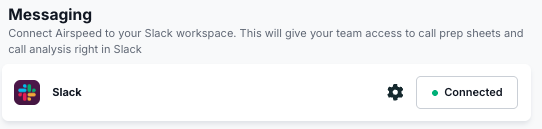
Slack returns you to Airspeed. The Slack card now shows as connected.
Step 2: Choose where call summaries go
On the Slack card, select the :gear: icon to open Slack Preferences.
Under Call Summaries, choose what each summary includes: Tasks, Qualification, Insights, and Deal Amount.
Under Post Call Summary rules, add a rule.
In Post to channel, choose the destination channel.
(Optional) Add Call tags or Participants to limit the rule to certain calls.
How rules work:
A call goes to every channel whose rule matches it. One call can go to more than one channel.
If a rule has both tags and participants, the call must match both: one of the tags and one of the participants.
A rule with no filters matches every call.
If a Deal Room is linked to a company on the call, the summary also goes to the Deal Room channel.
Public and private channels
Public channels appear in the channel list automatically. You do not need to invite Airspeed to post to a public channel.
Private channels do not appear until you invite the Airspeed app:
Open the private channel in Slack.
Type
/invite @Airspeedand press Enter.Go back to Slack Preferences in Airspeed and refresh the page. The channel now appears in the list.
Important: To use @Airspeed in a thread (to ask a question about a call), the Airspeed app must be in that channel, including public channels. Slack may offer to add the app the first time you mention it. Select Invite Them. You can also open the channel name → Integrations → Add apps.
Why a channel is missing from the list
It is a private channel and the Airspeed app is not in it yet. Invite the app, then refresh.
You created the channel after you opened the page. Refresh the page.
The channel is archived. Airspeed does not list archived channels.
You invited the app to a private channel and it still does not appear. Your Slack connection may be from before Airspeed supported private channels. Disconnect Slack, then connect it again to approve the new access.
What access Airspeed asks for
Slack shows a list of permissions when you connect. Airspeed uses them to:
Show the list of channels so you can choose one.
Post messages, including to public channels it has not joined.
Match Slack users to Airspeed users by email address.
Read the thread when someone mentions @Airspeed, so Airspeed can find the call the thread is about.
Add reactions, and join or create channels when a feature needs it.
Show previews of links to Airspeed in Slack.
Airspeed does not read channels that it is not in.
Disconnect Slack
On the Slack card, select Disconnect.
Confirm in the Disconnect Slack? window.
Airspeed stops sending messages to Slack and revokes its access. Messages already posted stay in Slack. You can reconnect at any time.
Troubleshooting
"It says connected, but I do not see all my channels." The list shows all public channels. A missing channel is almost always a private channel that needs the app invited, or a channel created after the page loaded. See "Why a channel is missing from the list" above.
"I cannot find the Airspeed app to invite it." In the channel, type /invite @Airspeed and choose the app from the suggestions. If it does not appear, check that a Slack admin approved the connection in Step 1.
"Airspeed posts to the channel, but does not answer when I mention it." Airspeed can post to a public channel without being in it, but it needs to be in the channel to see mentions. Invite the app to the channel.
"My connection expired." Go to Settings → Organizational → Messaging and select Connect on the Slack card again.
Still need help? Reach out to us with the name of the channel and whether it is public or private, and we will take a look.