Custom Insights
Last updated: September 23, 2026
Custom Insights are structured data points that Airspeed automatically extracts from your calls and deals - things like a prospect's tech stack, stated pain points, competitor mentions, or any other information that matters to your team. Insights are configured at the organization level by admins at Settings → Insights.
There are two types of Custom Insight: Call Insights and Deal Insights. Both are set up in the same place, but they differ in what they analyze and when they run.
Call Insights
Call Insights extract information from individual call transcripts. Every time a relevant call is recorded, Airspeed analyzes the transcript and captures the configured values.
Where they appear
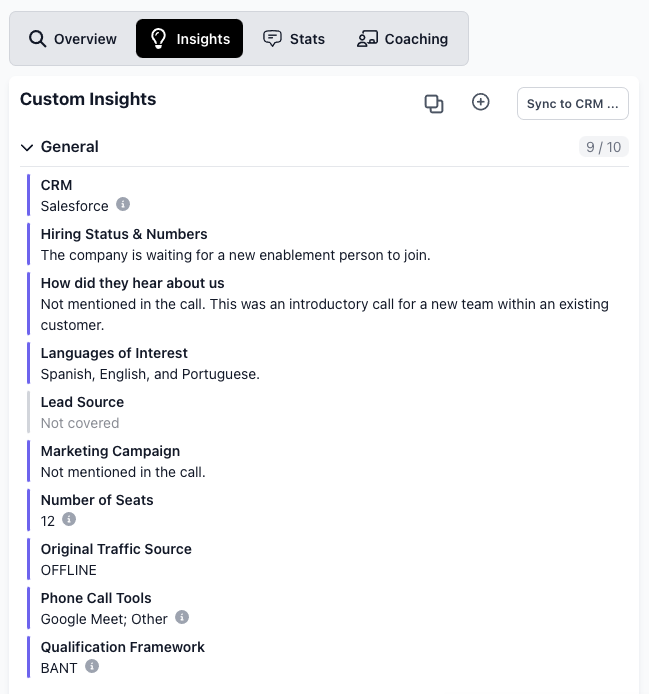
Call page → Insights tab — values captured on that specific call.
Company page → Insights tab — a running picture of all values captured across every call for that account.
Deal Insights
Deal-level insights is part of the Forecasting add-on. Organization admins can request access as part of a 30 day free trial here.
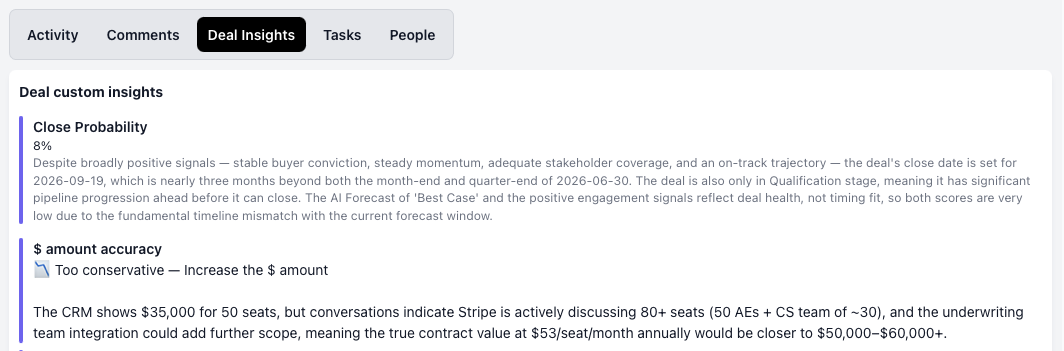
Deal Insights analyse everything known about a deal — all calls, emails, and notes — rather than a single call. They are designed to answer questions about the deal as a whole, such as MEDDIC qualification fields, competitive positioning, or buying process details.
Deal Insights run on open deals and re-run automatically after a call tied to the deal finishes processing.
Where they appear
Deal page → Insights tab — current values inferred across all deal activity.
Company page — visible alongside other deal data for that account.
Deal Insights support start and stop conditions that give you precise control over when Airspeed runs an insight on a deal.
Start criteria — conditions that must be met before Airspeed begins capturing values for a deal. For example, only start once a call with a “Discovery” tag has been recorded.
Stop criteria — conditions that, once met, cause Airspeed to stop updating the insight. For example, stop once the deal reaches a closed stage.
Criteria can be based on call tags, users, teams, deal owner, or deal stage. This is useful for insights that are only relevant at certain points in the sales cycle — such as MEDDIC fields that should only populate after an initial qualifying call.
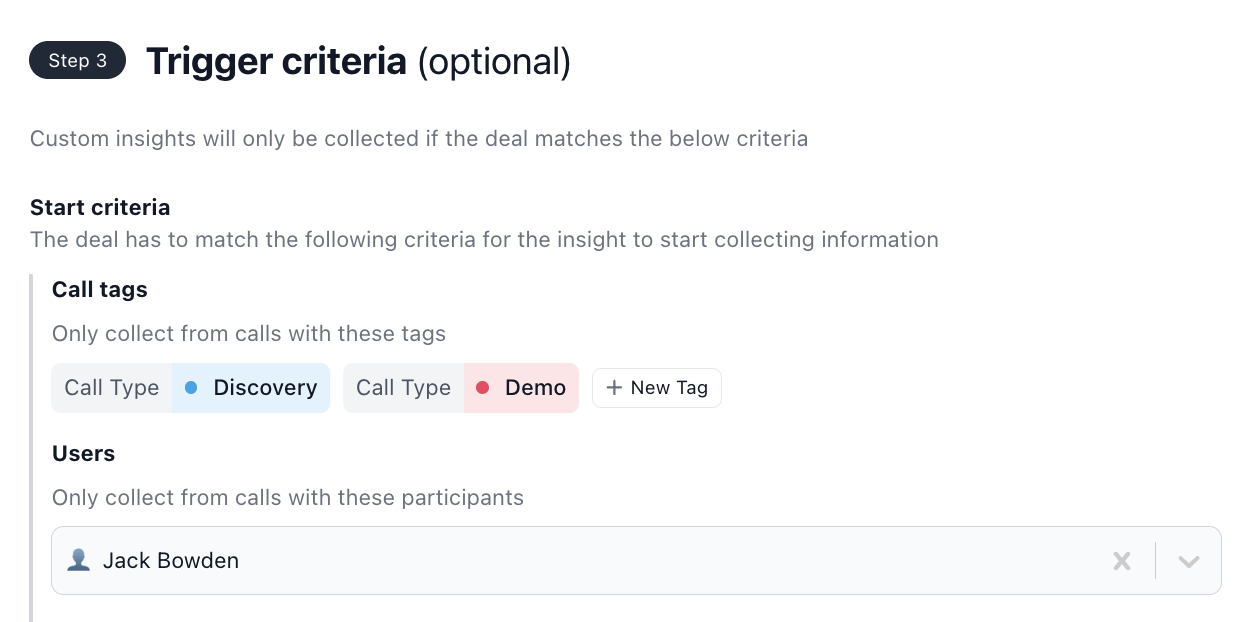
Within each filter, a deal matches if any of the selected values apply. Across different filters, all filters must match. For example: (referring to the image above)
- Call tags: Discovery, Demo
- Users: Jack Bowden
This insight would only run on deals where Jack Bowden had a Discovery or Demo call.
If another user were to have a Discovery call, it would not run. Likewise, if Jack had a "Negotiation" call, it also would not run.
Configuration
Both insight types are configured at Settings → Insights. The table below shows which options are available for each type.
Option | Description | Call | Deal |
|---|---|---|---|
Name and display name | How the insight appears in the app. | ✓ | ✓ |
Prompt | The instruction Airspeed uses to extract the value. | ✓ | ✓ |
Field type | The shape of the captured value: free text, number, date, or checklist (single or multi-select). | ✓ | ✓ |
CRM field mapping | Which HubSpot or Salesforce field to sync the value to. | ✓ | ✓ |
Sync behavior | How new values interact with existing CRM data: overwrite, append, or don't overwrite. | ✓ | ✓ |
Filters | Limit extraction to calls from specific users, teams, or with specific call tags. | ✓ | ✓ |
Deal Insight Trigger Criteria | Control when Airspeed runs insights on a deal. | – | ✓ |
Slack notifications | Post to a Slack channel when a value is captured, with an optional AI filter to control which captures trigger a notification. | ✓ | ✓ |
CRM sync
Both Call and Deal Insights can be mapped to a field in your CRM. When a value is captured, Airspeed can automatically push it to the corresponding CRM field so your CRM stays up to date without manual data entry. Sync behavior is configurable per insight.
For ideas on what to configure, see Inspiration for Custom Insights in the Best Practices collection. If you need help setting up insights for your team, reach out to support@goairspeed.com.