Outlook Add-In for Consent Pages
Last updated: August 17, 2026
The Airspeed Outlook add-in lets your team add an Airspeed consent page to any Outlook calendar event with a single click. When you create a meeting, the add-in inserts a link to a branded consent page where participants can choose to join with or without recording — giving them clear, up-front control over whether the conversation is captured and analyzed by Airspeed.
This guide covers how an administrator sets the add-in up for your organization, and how users work with it day to day.
Note: The add-in requires Outlook and Microsoft Teams. Each user also needs an active Airspeed account for the add-in to work.
Part 1: Set up the add-in (administrator)
The add-in is not published to Microsoft AppSource, so your Microsoft 365 administrator deploys it directly to your organization. There are two steps: grant admin consent, then deploy the add-in to the users you choose.
Step 1: Grant admin consent
Grant admin consent to the Airspeed Outlook add-in so it can create Teams meetings on behalf of your users. Open the following link while signed in as an administrator and approve the requested permissions:
Grant admin consent to the Airspeed Outlook add-in
Step 2: Deploy the add-in across Outlook
Upload the add-in as a custom Office add-in so it is available to the users you select:
Go to the Microsoft 365 Admin Center: https://admin.cloud.microsoft
In the left menu, select Settings → Integrated apps.
Click Upload custom apps.
Choose Office Add-in as the app type and provide the manifest URL: https://app.goairspeed.com/outlook-addin/manifest.xml
Select the users or groups who should have access.
Accept the permissions and complete the deployment.
Note: It can take a few hours for the deployment to fully propagate. Once it does, the selected users will see an Add Airspeed meeting button when creating a new Outlook calendar event.
Part 2: Use the add-in (users)
Once the add-in is deployed, create a new calendar event in Outlook as usual. In the meeting toolbar, click Add Airspeed meeting.
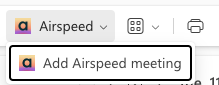
Clicking the button adds a link to an Airspeed consent page to the calendar event. When a participant opens the link, they can choose how to join:
Join the meeting — join with recording enabled.
Join but don't record — join the meeting without having the conversation recorded.
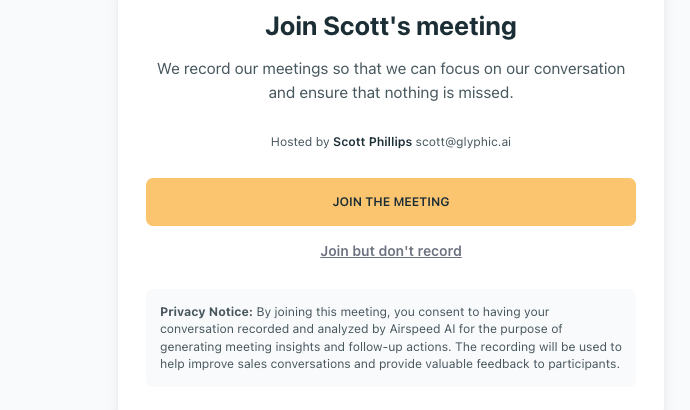
The consent page shows who is hosting the meeting and a privacy notice explaining that, by joining, participants consent to having the conversation recorded and analyzed by Airspeed to generate meeting insights and follow-up actions.
Still need help?
If the Add Airspeed meeting button doesn't appear after deployment, confirm that a few hours have passed for propagation, that the user is included in the assigned users or groups, and that they have an active Airspeed account. Still stuck? Reach out to us and we'll get it sorted for you.
Multi-lingual Support
We support multi-lingual consent pages for the following languages:
English
French
German
Spanish
Italian
Portuguese
Dutch
The language to show follows a two step process:
First we will attempt to show the language that the browser is configured to show, based on it's settings and locations.
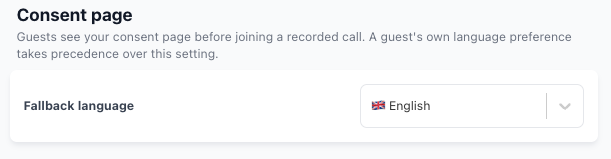
If this is not possible, or the language detected does not fall in the supports list above, it will default to the fallback language selected by the meeting host from Airspeed. This setting can be configured in the user settings